
Open Vocabulary Keyword Wake-Up#
Want the device to respond when it hears “Hello Xiaonan”, or any word you like? This example lets you register your own wake-up words live using your own voice. Once registered, the device continuously listens to the microphone; the moment it hears any of these words, it wakes up immediately and tells you which one it was.
Registration and detection are both done offline on the K230 development board: no need to retrain the model on a computer, and no internet connection required.
Features#
Feature |
Description |
|---|---|
Wake-up words as you choose |
No fixed vocabulary; record 3 times to register; 4 or more syllables recommended, e.g., “Hello Xiaonan”, “Xiaonan classmate” |
Multiple wake-up words |
Up to 8 words, monitored and distinguished simultaneously. All words share a single neural network inference; adding more words barely adds overhead |
Distinguishes similar words |
Two-stage judging: “Xiaonan classmate” and “Xiaozhi classmate” differ by only one character, but won’t trigger each other; overly similar words are blocked during registration |
Fast response |
Processes audio every 160 ms; about 0.3 s from speaking to wake-up; neural network runs on the KPU, the rest of the computation runs in firmware C/C++ modules |
Worry-free recording |
Stops automatically when you finish speaking; automatically turns down microphone volume when too loud, the volume bar turns red to alert; timeout reminder if no speech is detected |
Wake-up indication |
Speaker plays a prompt tone on wake-up; the screen highlights the word in its own color |
Adjustable sensitivity |
Three levels: “Sensitive / Normal / Conservative”, adjusts the tightness of both judging stages simultaneously |
Flexible management |
Delete a single wake-up word or clear all at once; cancel anytime during registration |
Multiple screens |
IDE virtual screen by default; also supports development board LCD touchscreen and HDMI; interface auto-layouts by resolution and orientation |
Offline, private |
Recordings and registration results are only saved on the development board’s SD card under |
Quick Start#
In VS Code’s CanMV plugin, run /sdcard/examples/31-OPEN-KWS/open_kws_app.py, open the virtual screen preview, and use the mouse to click the on-screen buttons to operate.
Landscape 800×480 · Detecting |
Portrait 480×800 · Registering |
|---|---|
|
|
After saying the wake-up word, the curve crosses the red line, “Wake! kw_0” pops up and a prompt tone plays |
Currently recording segment 2; during registration, “Register New Word” becomes “Cancel Registration” |
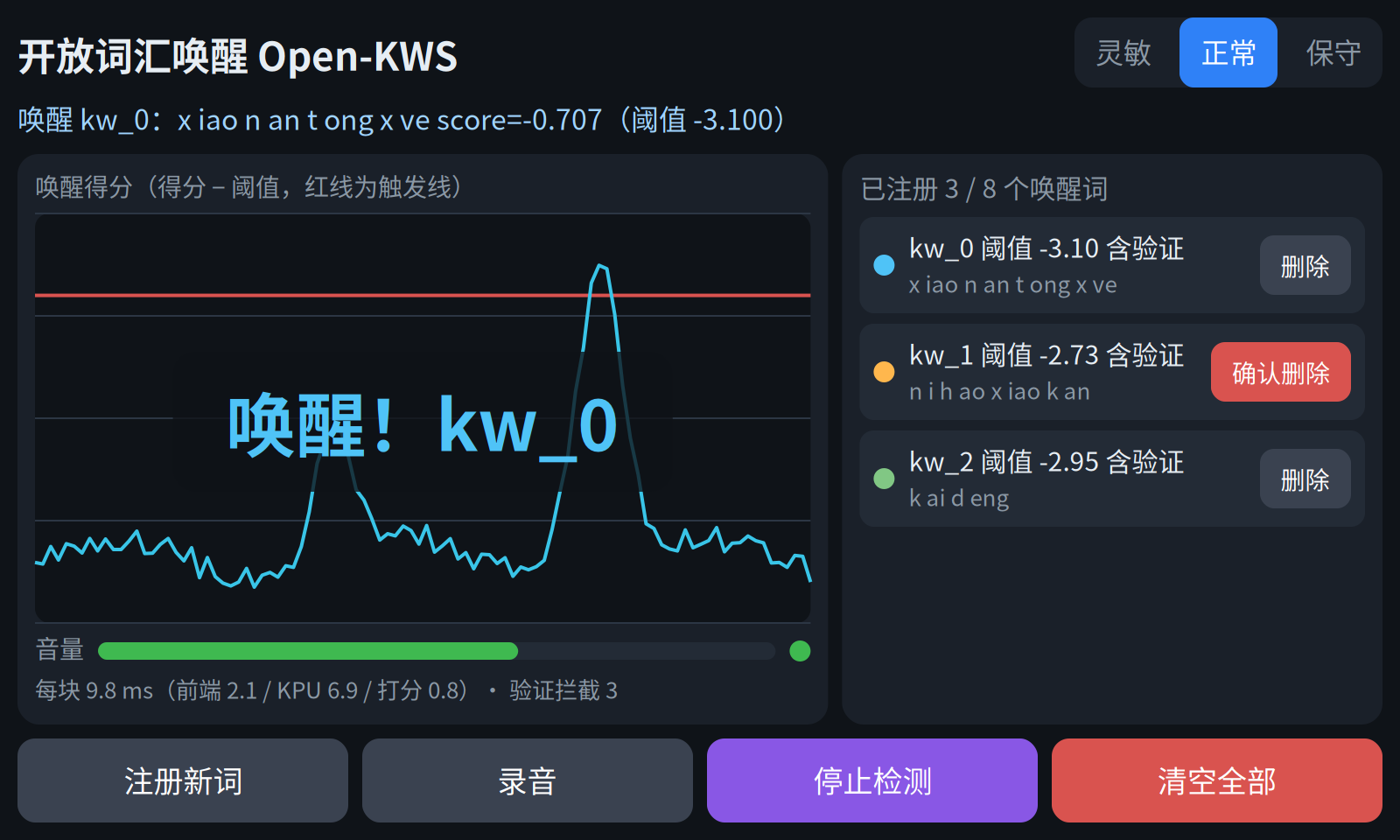
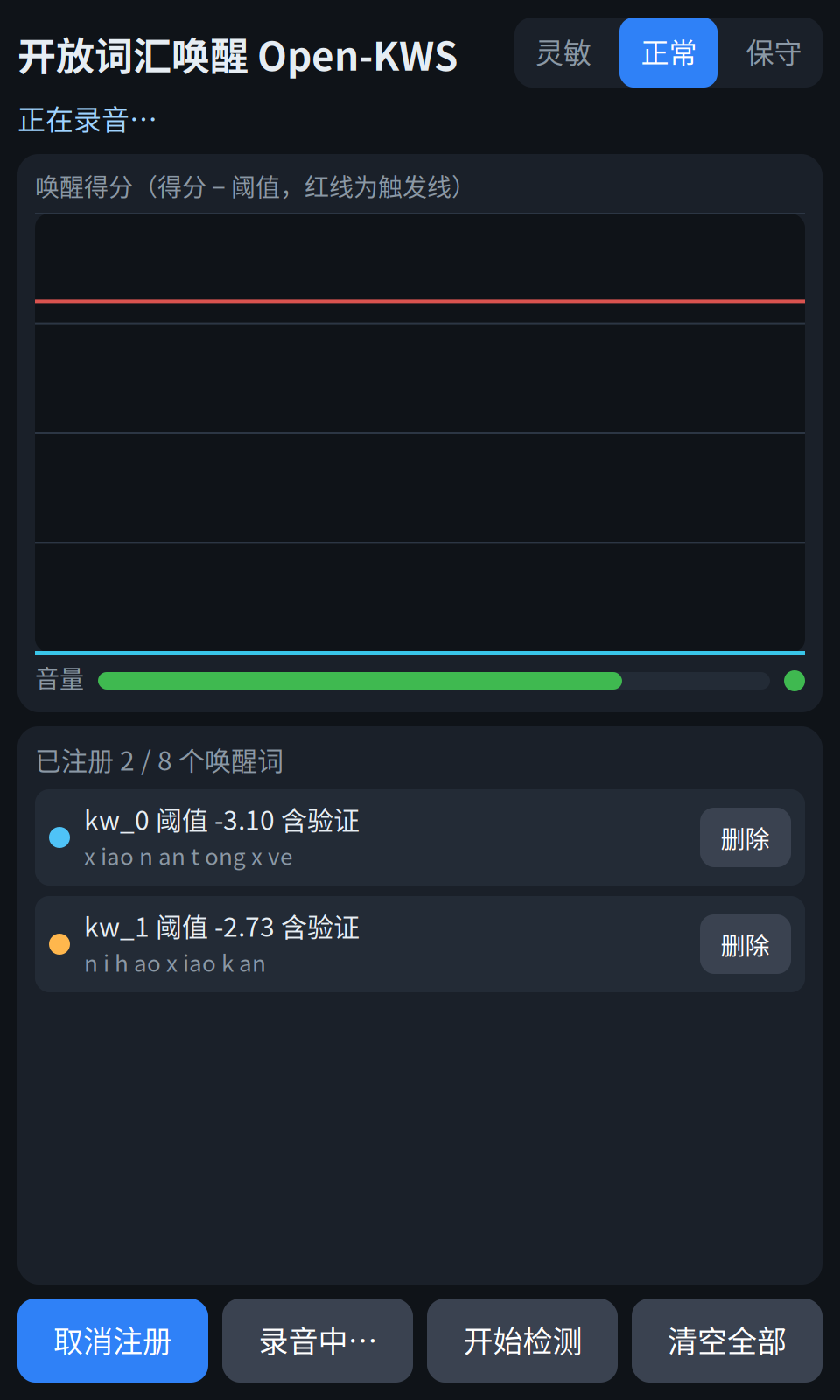
Area |
Content |
|---|---|
Top |
Title and sensitivity toggle (“Sensitive / Normal / Conservative”, current level highlighted); below shows operation hints and results |
Score card |
The curve is the maximum of “score − threshold” across all wake-up words; crossing the red line and passing the second stage triggers wake-up; below shows real-time volume bar, voice indicator, and processing time |
Wake-up word card |
Registered words: color, ID, threshold, decoded phonemes, each row has a “Delete” button; scrollable when many words |
Bottom buttons |
Register new word (becomes “Cancel Registration” during registration), Record, Start/Stop detection, Clear all |
Display Modes#
The IDE virtual screen (800×480) is used by default. To run on a physical screen, modify the DISPLAY_MODE in the “Screen” configuration at the beginning of open_kws_app.py:
Value |
Display |
Operation |
|---|---|---|
|
IDE virtual screen |
Click with mouse in CanMV plugin preview |
|
Development board MIPI screen (e.g., 01studio’s ST7701) |
Screen has built-in touch |
|
HDMI monitor |
Click with mouse in IDE preview |
|
Use development board LCD if a touchscreen can be opened, otherwise use IDE virtual screen |
Same as above |
When using LCD, the resolution is automatically selected based on the firmware-supported screen list (
Display.list_modes()) and the size reported by the touchscreen; you can also specify withDISPLAY_SIZE, e.g.,(480, 800)for portrait.The interface’s fonts, spacing, and buttons scale to the screen size: side-by-side columns in landscape, stacked vertically in portrait; on screens larger than 1280×720, the interface is centered.
① Register a Wake-Up Word#
Click Register New Word.
Click Record Segment 1, then clearly say the wake-up word once.
The recording stops automatically after about 0.6 seconds of silence (up to 4 seconds); if no speech within 5 seconds, you’ll be prompted to re-record.
The program automatically extracts the portion with sound and checks the recording quality.
You can check the volume bar before recording: green is normal, red means the sound is too loud, please move further away or speak more quietly. When the volume is too loud and causes the recording to fail, the program automatically reduces the microphone volume and prompts you to re-record; the adjusted volume will be saved and used for subsequent registration and detection.
Follow the prompts to record segments 2 and 3. If one segment fails, you only need to re-record that segment.
Once all 3 segments pass, it automatically computes and checks if it’s too similar to already registered words; the status bar shows progress. When done, the new word appears in the list on the right, meaning registration succeeded.
You can click Cancel Registration at any time during the registration process to abandon the current registration; already registered words won’t be affected.
Repeat the above steps to add more, up to 8. Registration results are saved in the enroll/ directory and automatically loaded on next startup.
② Wake-Up#
Click Start Detection, and say any registered word into the microphone.
On wake-up, the speaker plays a prompt tone, the screen shows “Wake! kw_n” in the word’s color, and the serial port prints:
>>> WAKE kw_0 score=-0.707 th=-2.987 @12.56s
Click again (the button becomes Stop Detection) to stop.
The default prompt tone is the built-in “ding-dong” sound; you can replace it with your own wav file (16 kHz mono) via WAKE_SOUND, e.g., "/sdcard/examples/utils/wozai.wav", or set to None to disable it.
③ Sensitivity#
Click “Sensitive / Normal / Conservative” in the top-right corner to switch; it takes effect immediately and applies to all words:
Level |
Suitable Scenario |
|---|---|
Sensitive |
Quiet environment, speaking softly, wanting easier wake-up |
Normal (default) |
Most scenarios, balancing wake-up rate and false wake-up resistance |
Conservative |
Several similar words registered, or many voices around, wanting to avoid false wake-ups |
④ Delete Wake-Up Words#
Delete single: Click Delete on that word’s row; the button becomes Confirm Delete, click again within 3 seconds to delete that word and its recordings. You can delete during detection.
Clear all: Click Clear All; the button becomes Confirm Clear?, click again within 3 seconds to delete all wake-up words and recordings; after clearing, new words are renumbered from
kw_0.
Both operations auto-cancel if not clicked again within 3 seconds.
Possible Messages During Registration#
Message |
Cause |
Solution |
|---|---|---|
Recording too short / too long |
The extracted speech is not between 0.6–2.5 s |
Say the complete wake-up word, don’t say extra words |
Volume too low |
Peak is too small |
Move closer to the microphone, 30–100 cm is suitable |
Volume too high (clipping) |
Too many samples have waveform peaks cut off, and the microphone volume is already at the lowest |
Move further away or speak more quietly |
No speech detected |
Volume hasn’t been noticeably higher than ambient noise within 5 seconds |
Move closer to the microphone, speak louder |
Environment too noisy |
Speech is less than 10 dB above ambient noise |
Move to a quieter place, or speak closer to the microphone |
Wake-up word too short |
Fewer than 4 syllables |
Choose a word with 4 or more syllables |
Recordings differ too much between segments |
Calculated threshold is higher than the worst segment recording |
Keep the same speaking speed and volume across all three recordings |
Too similar to registered kw_x |
The new word would trigger kw_x |
Choose a word with more distinctive pronunciation |
Saying kw_x would also wake the new word |
The new word would be triggered by kw_x, e.g., the new word is a subset of the old word (“wo lai le” ⊂ “wo zhen lai le”) |
Choose a different word |
Implementation Principles#
Overall Structure#
All computation is done inside the firmware’s built-in open_kws module (C/C++); the example script only handles the UI, recording, and file management.
Role of the acoustic model: The model does not directly recognize a specific word, but converts sound into probabilities over 59 classes of “pinyin units”: 21 initials, 35 finals, plus blank, silence, and unknown.
Any wake word can be written as a sequence of initials and finals, e.g. “小楠同学” = x iao n an t ong x ve. So without retraining the model, any arbitrary word can be supported.
Streaming Detection#
Stage |
Implementation Details |
|---|---|
Feature extraction |
512-point FFT, 10 ms frame shift, 40-dim Mel filter with normalization — identical to model training |
Sliding-window inference |
Inference window: 96 frames (0.96 s), slides and recomputes every 160 ms; model outputs 24 frames but only the central ones are used, avoiding inaccurate edge regions |
Scoring |
CTC forward algorithm: compute the probability that “the recent sound was pronounced as this sequence of initials and finals”. Allows starting from any time, normalized by unit count, so long and short words can share the same standard |
Multiple wake words |
All words share a single KPU inference; each additional word only adds one scoring pass |
Triggering |
Requires two consecutive frames meeting the condition; after a word triggers, a 1.5 s cooldown prevents repeated wake-ups |
Latency |
About 0.3 s (model’s right side needs 80 ms + one 160 ms processing step + compute time) |
Two-Stage Decision: Why Similar Words Can Be Distinguished#
The first-stage score is the average level over the whole word. “小智同学” and “小楠同学” have 3 identical characters, so the average gap is tiny and cannot be separated by the first score alone. Therefore, before triggering, a second per-character verification is added:
When the word is actually spoken, every syllable’s score is close to 0 (log probability).
For a similar word that differs by only one character, that differing syllable drops to −5 ~ −10, so it gets blocked.
Decision rule:
weakest_syllable_score + α × (whole_word_score − threshold) > −3.0 + δ.The more the whole-word score exceeds the threshold, the looser the requirement on the weakest syllable, reducing missed wakes of the true word.
During enrollment, multiple possible initial/final sequences are decoded; during per-character verification, the best-performing one is used, avoiding false misses caused by an inaccurate decode on some syllable.
Sensitivity levels adjust both gates simultaneously:
Level |
Stage 1 threshold offset |
Sequences used for per-character verification |
α |
δ |
|---|---|---|---|---|
Sensitive |
−0.15 |
8 |
0 |
0 |
Normal |
0 |
8 |
2.0 |
+1.25 |
Conservative |
+0.15 |
3 |
2.0 |
+1.25 |
Enrollment: Learning a Word from 3 Recordings#
Recording and quality check:
Continuously estimate ambient noise during idle; recording begins once volume is clearly above the noise floor, and ends when it returns to noise level for about 0.6 s.
SNR = speech energy ÷ ambient noise; both have the microphone’s DC offset removed first.
If excessive clipping occurs, microphone gain is automatically reduced and saved; the same gain is used for both enrollment and detection.
Threshold calibration: each word’s threshold is computed individually; no single fixed value is used.
Positives: use the sequences derived from 2 of the 3 recordings to score the remaining one, rotated 3 times (leave-one-out), representing scores for “actually saying this word”.
Negatives: split each recording into 3 segments, shuffle and reassemble them into 5 permutations. Voice and phonemes are the same but the order is wrong, representing scores for “sounds similar but isn’t”.
Threshold: chosen between the two, closer to the negatives:
0.38 × positive_mean + 0.62 × negative_mean.
Two-way similarity check: uses the current sensitivity level’s two-stage rules with margin.
Forward: will the already-enrolled word trigger on the new recording?
Backward: will the new word trigger on the already-enrolled word’s saved recording?
Additional checks: at least 4 syllables, and even the worst recording exceeds the threshold.
Application Flow#
Single-threaded main loop: each round fetches one audio chunk, processes it according to the current state, then refreshes the LVGL UI and reads the touch input; button callbacks only record actions, actual work runs in the main loop.
Enrollment computation in steps: threshold calibration and similarity check proceed step by step; UI is refreshed and progress is shown between steps, so the interface stays responsive during computation.
Errors don’t exit: if the model or a file fails, the reason is shown and the current enrollment or detection is cancelled; the app remains usable.
Development Interface#
open_kws is a built-in firmware module that can be used directly with import open_kws. The module is controlled by CanMV Micropython Components Configurations → Enable open-vocabulary KWS (open_kws) module (CONFIG_ENABLE_MODULE_OPEN_KWS) in menuconfig and is enabled by default; when disabled, the firmware does not include this module, and the SD card image no longer ships this example.
Minimal usage:
import open_kws, json

ROOT = "/sdcard/examples/31-OPEN-KWS/"
eng = open_kws.Engine(ROOT + "model/kws.kmodel", ROOT + "assets")

with open(ROOT + "enroll/kw_0.json") as f:      # Load registered wake word
    eng.add_keyword(json.load(f))
eng.set_sensitivity("normal")                   # First stage: threshold offset
eng.set_verify(n_hyps=8, alpha=2.0, delta=1.25) # Second stage: same as the "normal" preset above

# Microphone: 16 kHz, mono, 16-bit, 2560 samples per chunk (open_kws.CHUNK)
events = eng.push(pcm)
for kw_id, score, threshold, start_ms, end_ms in events:
    print("wake:", kw_id)                       # Hook your own action here
Common interfaces:
Interface |
Function |
|---|---|
|
Load model and feature parameters |
|
Manage wake words; |
|
Feed in one chunk of audio, returns wake events |
|
First-stage threshold offset: |
|
Second-stage rules (see judgment rules above) |
|
Processing latency, volume, VAD status, and current score for each word |
|
For enrollment: trim voice segment, quality check, compute volume and peak of one chunk |
|
Enrollment recording quality requirements: max clipped sample ratio, minimum SNR |
|
Enrollment process; |
|
Similarity check during enrollment |
For the complete enrollment and UI process, refer to open_kws_app.py.
Enrollment Result File#
Each wake word is saved as an enroll/kw_<n>.json, with main fields:
{
  "kw_id": "kw_0",
  "hypotheses": [
    {"units": [21, 38, 14, 26, 20, 45, 21, 57], "weight": 0.195},
    {"units": [21, 38, 13, 26, 20, 45, 21, 57], "weight": 0.123}
  ],
  "threshold": -3.1259,
  "verify_threshold": -3.0,
  "cooldown_ms": 1500,
  "confirm_frames": 2
}
Field |
Description |
|---|---|
|
Initial/final phoneme sequences decoded from enrollment (numbers correspond to line indices in |
|
First-stage threshold, calibrated individually for each word |
|
Second-stage base threshold |
|
Trigger cooldown time, consecutive confirmation frame count |
File Description#
File |
Description |
|---|---|
|
Sample program: LVGL UI, state machine, recording and prompt sounds, enrollment file management |
|
Acoustic model: input 40×96 features, output 24 frames × 59 pinyin unit probabilities |
|
Feature extraction parameters (window function, Mel filter, normalization parameters), must match the model, please do not modify |
|
List of 59 pinyin units |
|
Generated at runtime: |
Tunable Parameters#
All tunable parameters are gathered in the “Configurable Parameters” section at the beginning of open_kws_app.py, grouped by purpose. Modify one place to take effect.
Screen
Parameter |
Default |
Description |
|---|---|---|
|
|
Display mode: |
|
None |
Specify resolution, e.g. |
|
None |
LCD touch rotation (set when screen and touch orientation are inconsistent) |
|
(800, 480) |
Resolution of the IDE virtual screen |
|
(1280, 720) |
Maximum UI resolution; larger screens display centered |
Audio
Parameter |
Default |
Description |
|---|---|---|
|
100 |
Initial microphone volume |
|
True |
Automatically lower microphone volume when recording clips and save |
|
10 / 40 |
Step and lower limit for automatic volume reduction |
|
|
Wake-up prompt sound: |
|
85 |
Prompt sound volume |
Detection and Sensitivity
Parameter |
Default |
Description |
|---|---|---|
|
Sensitive / Normal / Conservative |
Each tier is (name, first-pass threshold offset, n_hyps, α, δ), the tier button at the top right is generated from this |
|
1 (Normal) |
Tier at startup |
|
1500 |
Wake-up prompt display duration (ms) |
Enrollment and Recording
Parameter |
Default |
Description |
|---|---|---|
|
3 |
Number of enrollment recordings per word |
|
4 / 25 / 31 |
Recording auto-end: silence duration after speech (0.64 s), max recording (4 s), wait-for-speech timeout (5 s), unit is one block of 160 ms |
|
2.5 / 0.03 |
Volume considered as speech: multiple above noise floor, or above absolute volume |
|
0.005 / 10 |
Recording quality requirement: allowed clipped sample ratio, minimum SNR |
|
True |
Save enrollment recordings; when disabled, no reverse similarity check is performed |
|
−0.15 / −0.5 |
Margin for enrollment similarity check, smaller is stricter |
UI colors, background images, score curve range, and various secondary confirmation times are also in the same configuration section and can be adjusted as needed.
Usage Suggestions#
Keep the enrollment environment as consistent as possible with the usage environment: same microphone, similar distance and volume.
Choose words: more than 4 characters, not everyday catchphrases, with obvious pronunciation differences between words.
Easily confused sounds: words distinguished only by sounds that the model itself easily confuses (e.g. lan/nan, in/ing, ai/an) are hard to distinguish even with two passes; recommended to avoid.
Adjust sensitivity: if missed wake-ups are frequent, switch to “Sensitive”; if false wake-ups are frequent, switch to “Conservative”.
Backup: re-flashing firmware will clear
enroll/; back up any wake words you want to keep.