Running Example Programs#
Overview#
Starting from K230 CanMV V0.5, virtual U-disk functionality is supported. Example scripts are pre-installed in the virtual U-disk, so users can use them directly without downloading from the network.
When the firmware is correctly flashed and successfully booted, users can see the virtual U-disk CanMV on their computer. After opening the virtual U-disk, navigate to the tests or examples directory (the folder names may vary depending on the version) to see example programs of different categories. It is recommended to use the CanMV Visual Studio Code extension to open and run these Python examples.
Running Example Programs#
Note
If you have not installed the CanMV extension yet, please refer to CanMV Extension Usage Instructions for installation and connection.
For users with K230 CanMV versions prior to V0.5, you can download test programs from the following link and load and run them through the CanMV extension: Test Program Download Address.
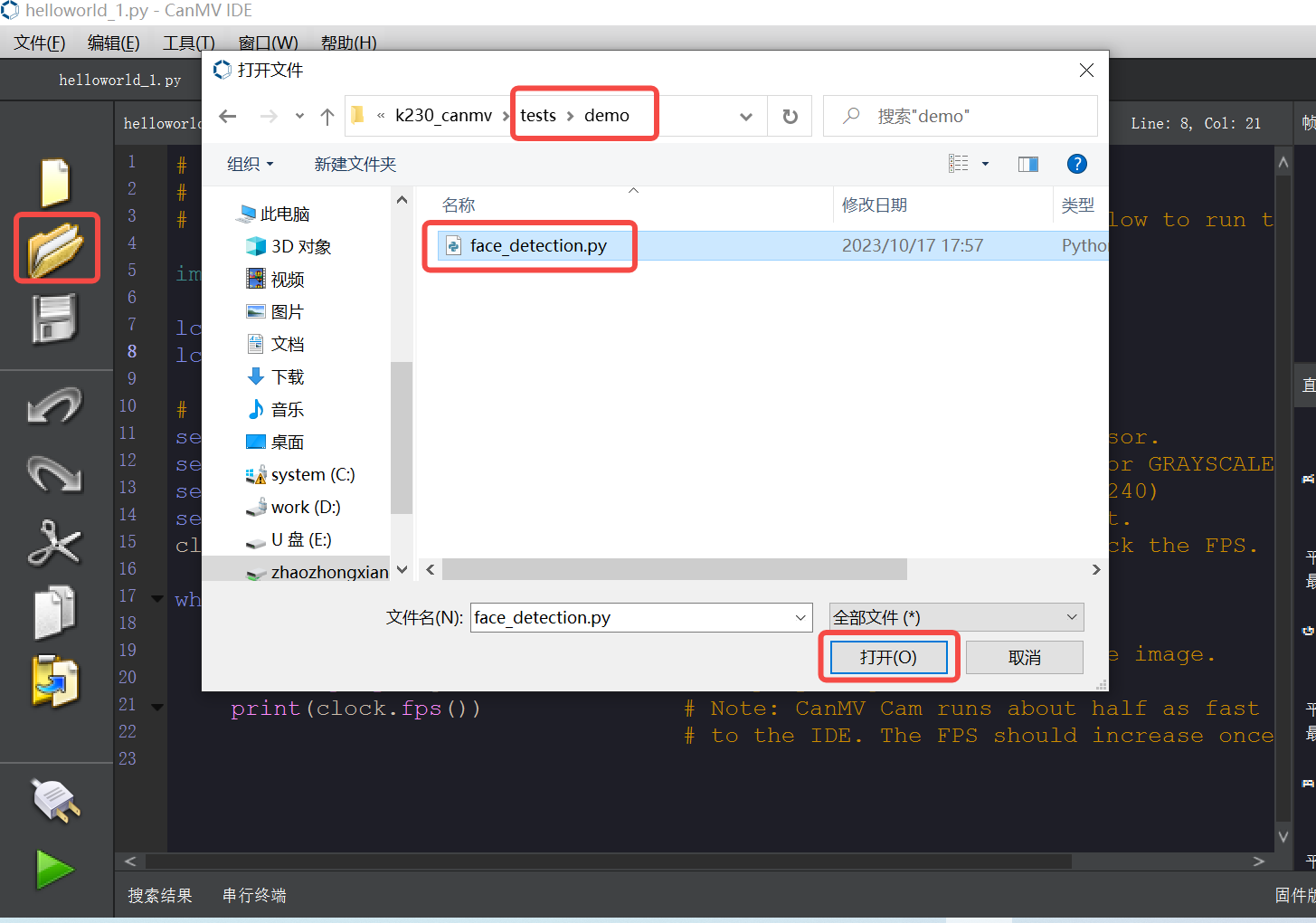
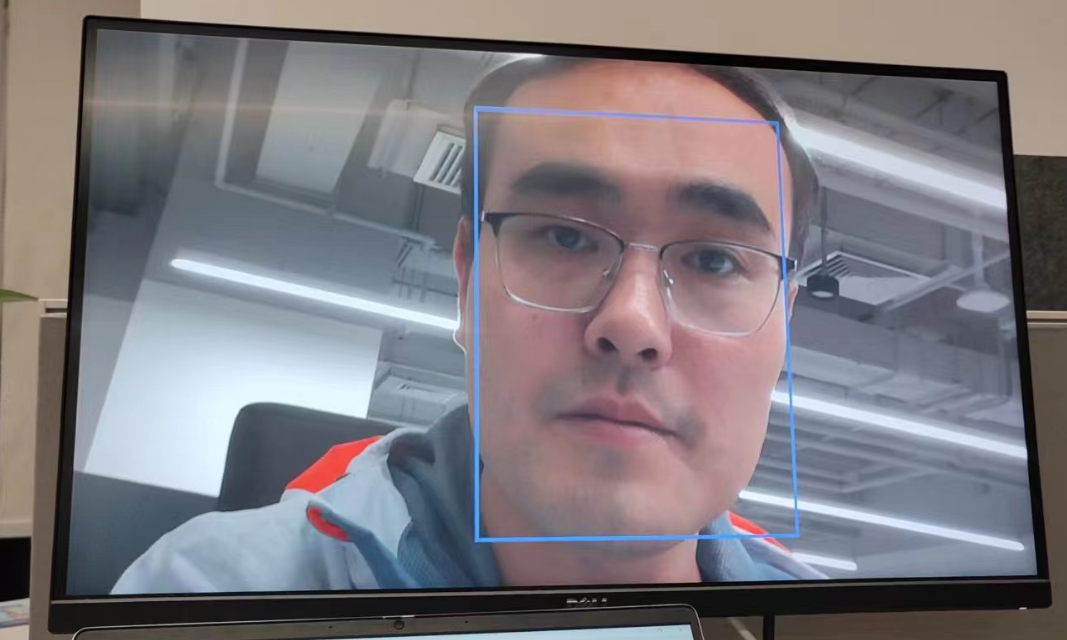
Open the downloaded test file in Visual Studio Code, then run CanMV: Run Current Python Script. After the program starts executing, wait a moment, and the image captured by the sensor will be displayed on the monitor. This example program is a face detection program. After running it, you can see that the face in the image is boxed out.
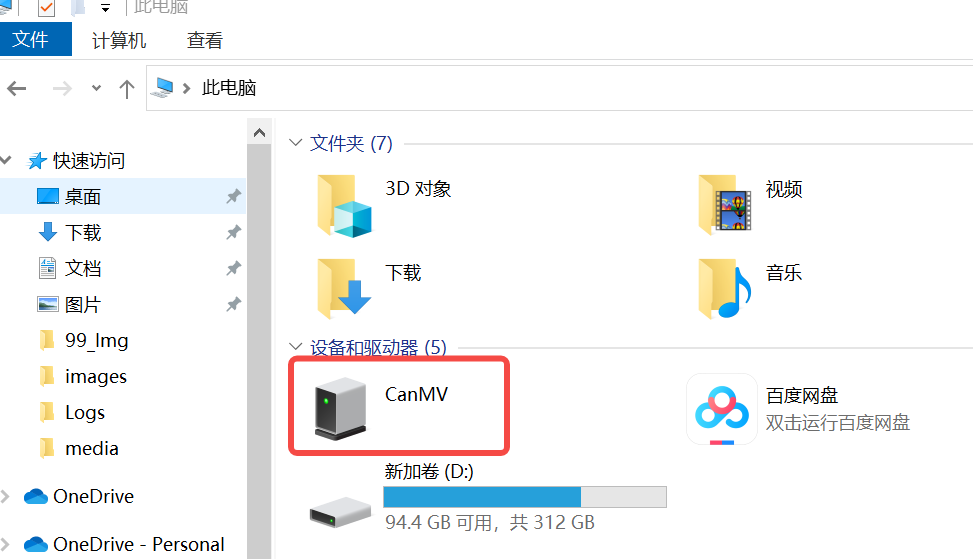
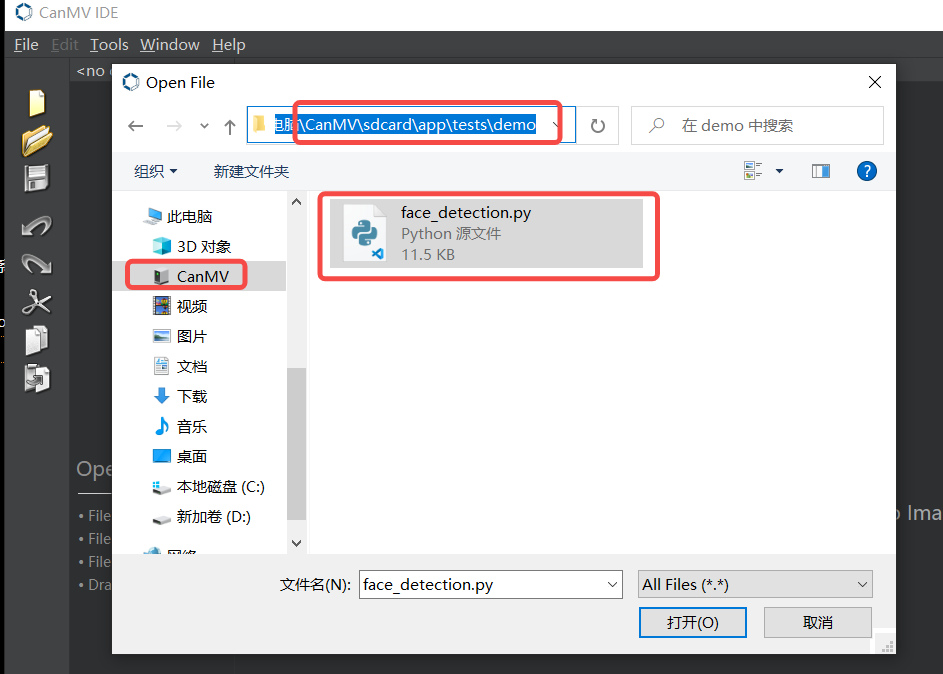
For K230 CanMV V0.5 and later versions, it is recommended to use the example programs in the virtual U-disk. After inserting the development board, open “My Computer” or “This PC” on the computer, and a virtual U-disk named CanMV will appear in Devices and Drives.
In the virtual U-disk, select the desired example script and open it in Visual Studio Code.
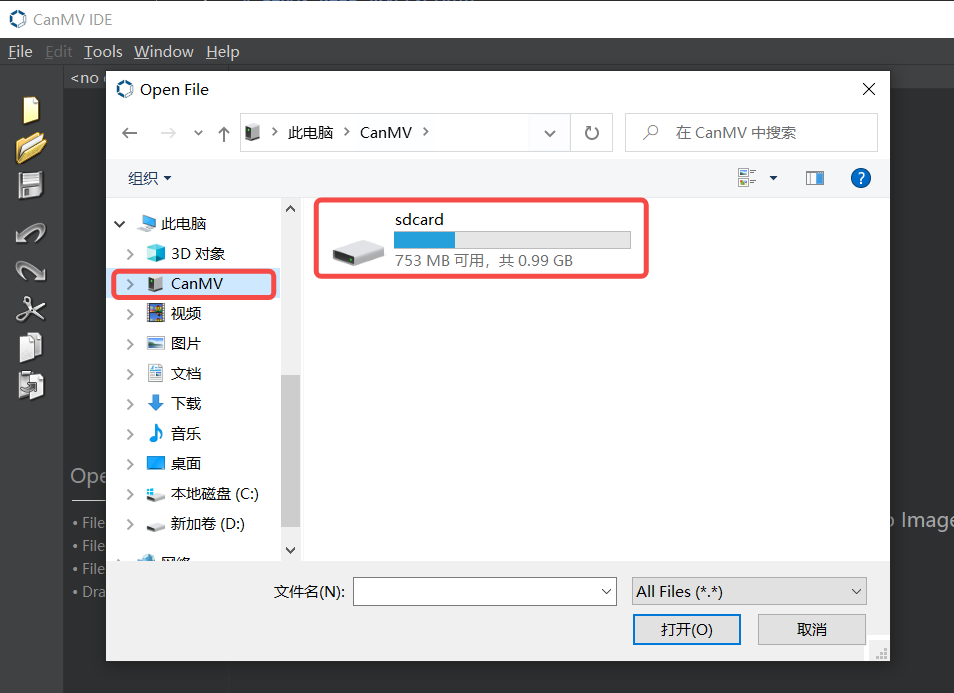
For example, when running the face detection example, you can find the corresponding script in the tests or examples directory.
After running the program, the monitor will display the AI face detection demo results, and the faces in the image will be automatically boxed and marked.