
Flashing Firmware#
Overview#
This chapter describes how to flash the CanMV firmware to the development board.
Obtaining Firmware#
You can obtain the CanMV-K230 firmware through the following links: Github or Kendryte Developer Community.
Please download the .gz archive whose filename starts with “CanMV-K230_micropython”. After decompression, you will get an xxxxx.img file, which is the firmware image for CanMV-K230.
Note
The downloaded firmware file is usually in gz compressed format and needs to be decompressed to obtain the img file that can be used for flashing.
Flashing Firmware#
The CanMV/MicroPython firmware uses the same USB flashing procedure as the K230 RTOS firmware. For the flashing mode, USB driver, GUI tool, command-line tool, and frequently asked questions, please refer to:
This guide applies to Windows, Linux, and macOS, and provides instructions for the following three K230-specific tools:
K230BurningTool(recommended)k230_flashC++ command-line toolk230_flash_pyPython command-line tool and API
Before flashing, please decompress the downloaded *.gz firmware and select the correct target medium according to the development board hardware. For development boards that boot from a TF card, SDCARD is typically selected; refer to the development board documentation for details.
Startup Device#
After the firmware is successfully flashed, connect the development board to the computer. The system will automatically recognize a virtual USB drive named CanMV and a virtual serial port.
Note
Some development boards require connecting 2 USB cables at the same time. If you do not see the corresponding virtual USB drive and virtual serial port, please check whether the connection is correct.
Viewing Devices on Windows#
Open Device Manager, you will see the following devices:
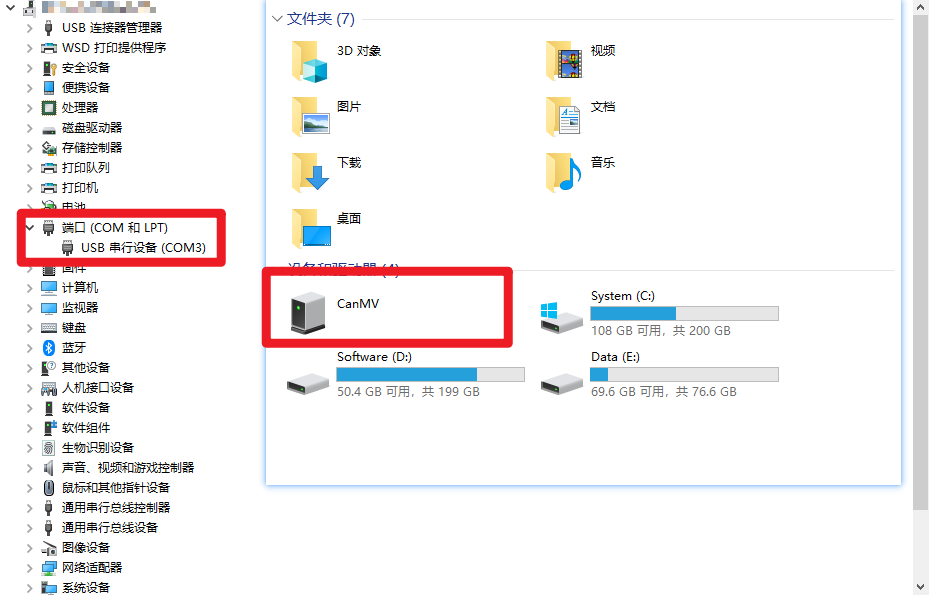
USB Serial Device (COM3) is the REPL serial port for MicroPython, and it is also the interface used by the CanMV Visual Studio Code extension to connect to the development board. Please ensure that the firmware file name you flash starts with “CanMV-K230_micropython”.
Viewing Devices on Linux#
On a Linux system, the serial port device will be displayed as:
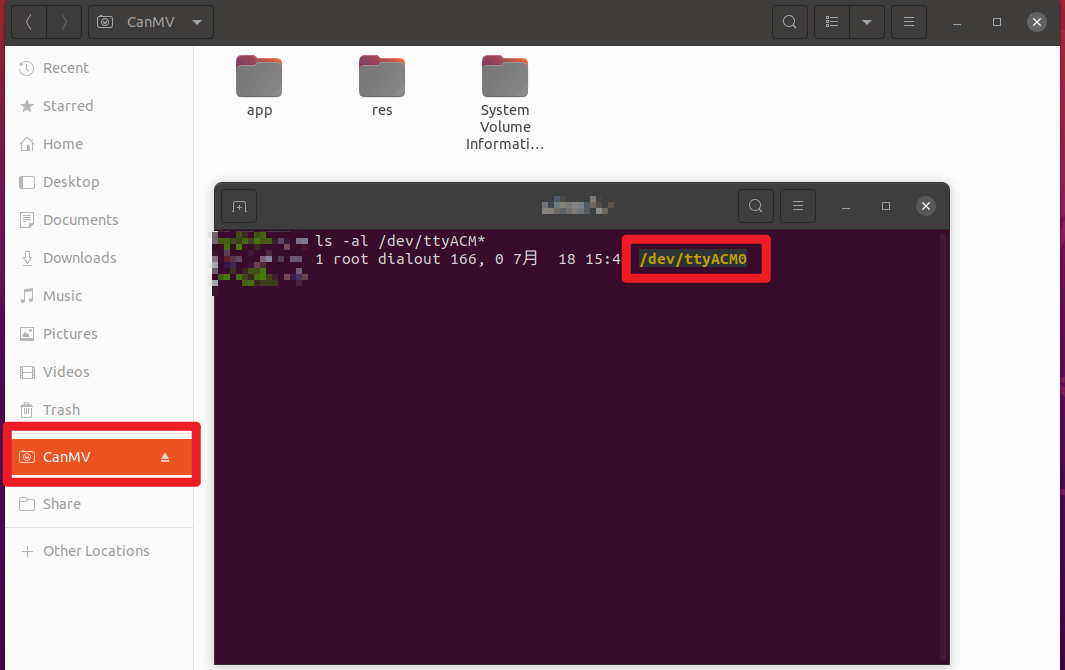
/dev/ttyACM0is the REPL serial port for MicroPython, and it is also the interface used by the CanMV Visual Studio Code extension to connect to the development board. Please ensure that the firmware file name you flash starts with “CanMV-K230_micropython”.